
1
Create your account
Sign up at app.amenexia.ai. The setup guide asks for your name, company, website, and hours, then a plan. You can stay on the trial or choose a paid plan.
Amenexia goes live from a guided setup in the app. You describe the business, connect a store or a product feed, teach it your website, try the widget, then place it on your site.
Begin by signing up for Amenexia on our website. Choose the plan that best fits your business needs and complete the registration process.
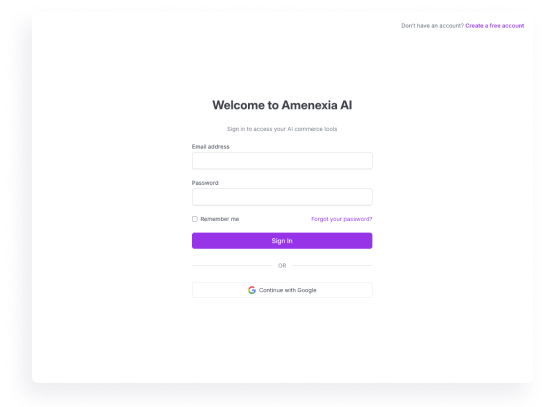

Sign up at app.amenexia.ai. The setup guide asks for your name, company, website, and hours, then a plan. You can stay on the trial or choose a paid plan.
Service businesses skip the catalog and continue with website knowledge. Stores pick a platform: Shopify, WooCommerce, BigCommerce, or Other store.
The connection is checked before you continue. Product sync starts after that and does not hold up the rest of setup.
mystore.myshopify.com domain and your public website, then connect. A custom app path is available with client id and secret.Set the website URL, an optional staging URL, and short company and industry descriptions. Scan the site and choose the pages Amenexia should learn from, up to your plan’s page limit. Page indexing runs after you select them.
Set the agent name, greeting, color, teaser, and corner. The defaults are enough to continue, and you can change them later.
The test step opens the real widget on a preview of your site. Send a message there. Answers can improve as page and catalog indexing finish. The widget is still only in that preview until the next step.
The Install step gives you a script for your assistant. Paste it before </body>:
<script id="amenexia-loader-script"
  src="https://app.amenexia.ai/js/loader.js"
  data-id="your-assistant-id"
  defer></script>
On Shopify, enable the Amenexia theme app embed: Online Store → Themes → Customize → App embeds.
Open the live site so the widget loads, then use Check installation. Finish setup becomes available once Amenexia sees the widget on your domain.
After install, the chat sits on your site and answers from the pages you selected and, for stores, from the product catalog.
Start in the app. Setup walks you from company details to a widget that is live on your site.